
Comax WMS Synchronization Plugin Configuration
Connect and configure automatic catalog synchronization from Comax WMS.
This guide describes the process of connecting the Comax WMS plugin, configuring synchronization parameters, managing catalog updates, and monitoring integration status within the Tec.Delivery platform.
Required Information
To connect the integration, obtain the following information from your Comax system.
| Parameter | Description | Example |
|---|---|---|
| Login | Login used to access Comax services | company123 |
| Password | Password used to access Comax services | ******** |
| Store ID | Store identifier in Comax | 1 |
| Price List ID | Price list identifier | 1 |
Store ID and Price List ID can be obtained from product records in the Comax system.
Create the Plugin
Navigate to:
Click Add and select the Comax.co.il (Product Sync) plugin.
| Parameter | Description | Example |
|---|---|---|
| Login | Comax login | company123 |
| Password | Comax password | ******** |
| Store ID | Store identifier | 1 |
| Price List ID | Price list identifier | 1 |
After entering the required parameters, save the settings to verify the connection to Comax.
Automatic Content Translation
If your Tec.Delivery account uses multiple languages, you can automatically translate product content into all enabled languages.
| Parameter | Description | Example |
|---|---|---|
| Automatic translation when added | Automatically translate content when products are imported | Enable |
| Source Language | Original language of the Comax data | Hebrew |
If your product data in Comax is maintained in Hebrew, select Hebrew as the source language.
Synchronization Schedule
| Parameter | Description | Example |
|---|---|---|
| Update Period | Automatic synchronization interval in hours | 6 |
A value of 6 means that synchronization will run every 6 hours.
Plugin Status
| Status | Description | Example |
|---|---|---|
| Enable | Synchronization is enabled | Active |
| Disable | Synchronization is disabled | Inactive |
Check Synchronization Status
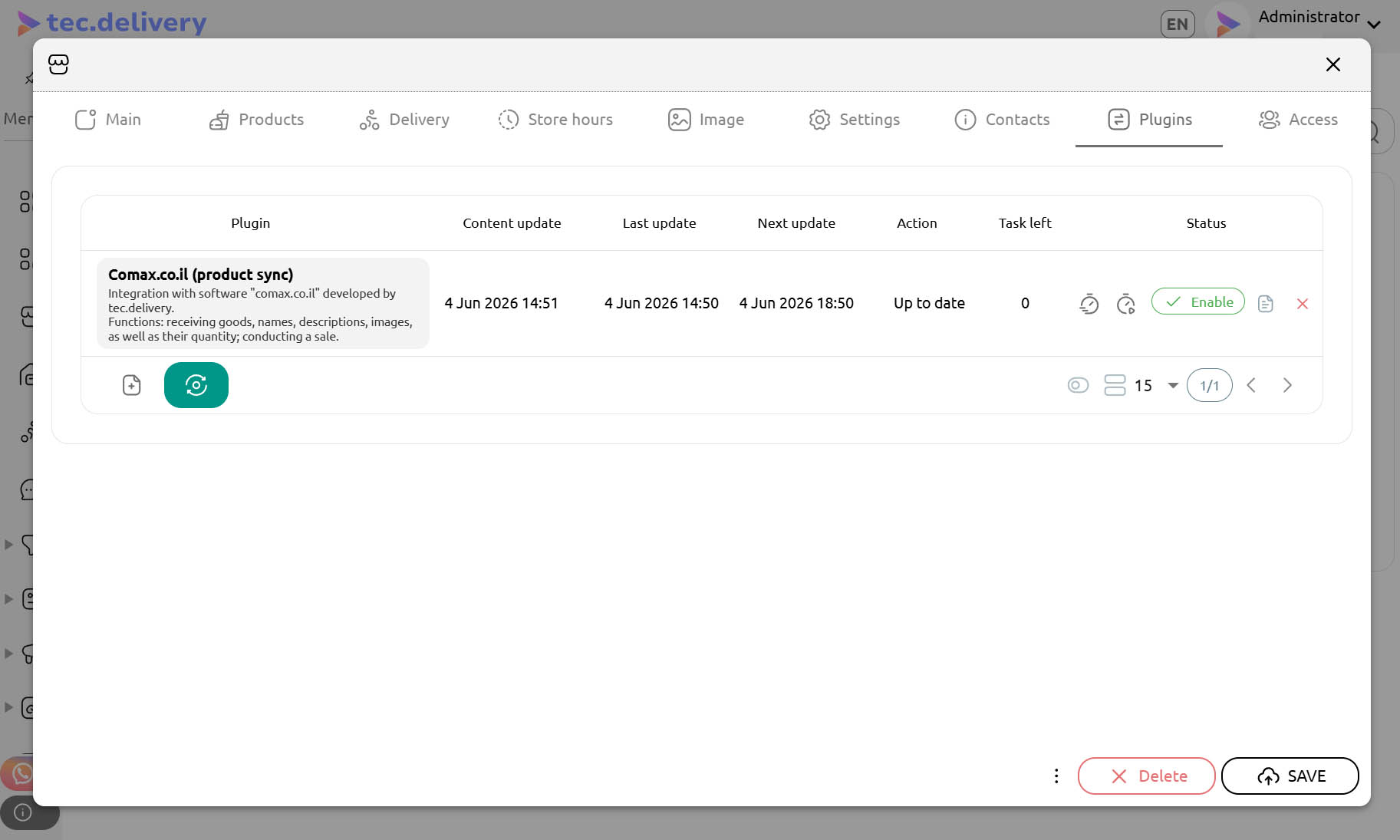
The current synchronization status is displayed in the plugin list.
| Field | Description | Example |
|---|---|---|
| Content Update | Time when all background content-processing tasks were completed | 2026-06-04 15:30 |
| Last Update | Time of the last successful synchronization | 2026-06-04 15:20 |
| Next Update | Scheduled time of the next automatic synchronization | 2026-06-04 21:20 |
| Action | Current synchronization status or result | Up to date |
| Tasks Left | Number of remaining background tasks | 0 |
The status Up to date indicates that the catalog is fully synchronized and no updates are required.
Manual Synchronization
Synchronization control buttons are available next to the plugin.
| Action | Description | When to Use |
|---|---|---|
| Reset External Keys & Update Now | Completely reset synchronization keys and reload the entire catalog | Initial setup or full resynchronization |
| Update Now | Immediately start synchronization using the current settings | Import the latest changes |
Use Reset External Keys & Update Now when you need to completely reload categories, products, and images.
Final Checklist
- Login and Password have been obtained from Comax.
- Correct Store ID and Price List ID values have been entered.
- The synchronization interval has been configured.
- Automatic content translation has been enabled if required.
- The plugin status is set to Enable.
- The synchronization status has been verified.
- A test synchronization has been performed.