
XPayment.kz Payment Plugin Configuration
Creating a payment method and connecting the XPayment.kz payment gateway.
This guide describes the process of creating a payment method, connecting the XPayment.kz plugin, configuring the required parameters, and verifying correct payment processing within Tec.Delivery.
Required Information
Before starting the configuration, make sure you have access to your XPayment account and have obtained an API token.
Complete Setup Guide: From Kaspi Connection to Your First Payment
This guide explains how to register with XPayment, obtain an API token, connect Kaspi and other payment methods, and configure webhooks for payment processing. It is recommended to complete this guide before configuring the plugin.
| Parameter | Description | Example |
|---|---|---|
| XPayment Account | Merchant account used for payment processing | merchant@company.kz |
| API Token | Access token issued by XPayment | xp_live_xxxxxxxxxxxx |
| Tec.Delivery Access | Administrator account in Tec.Delivery | Administrator |
Create a Payment Method
Navigate to the payment method creation section.
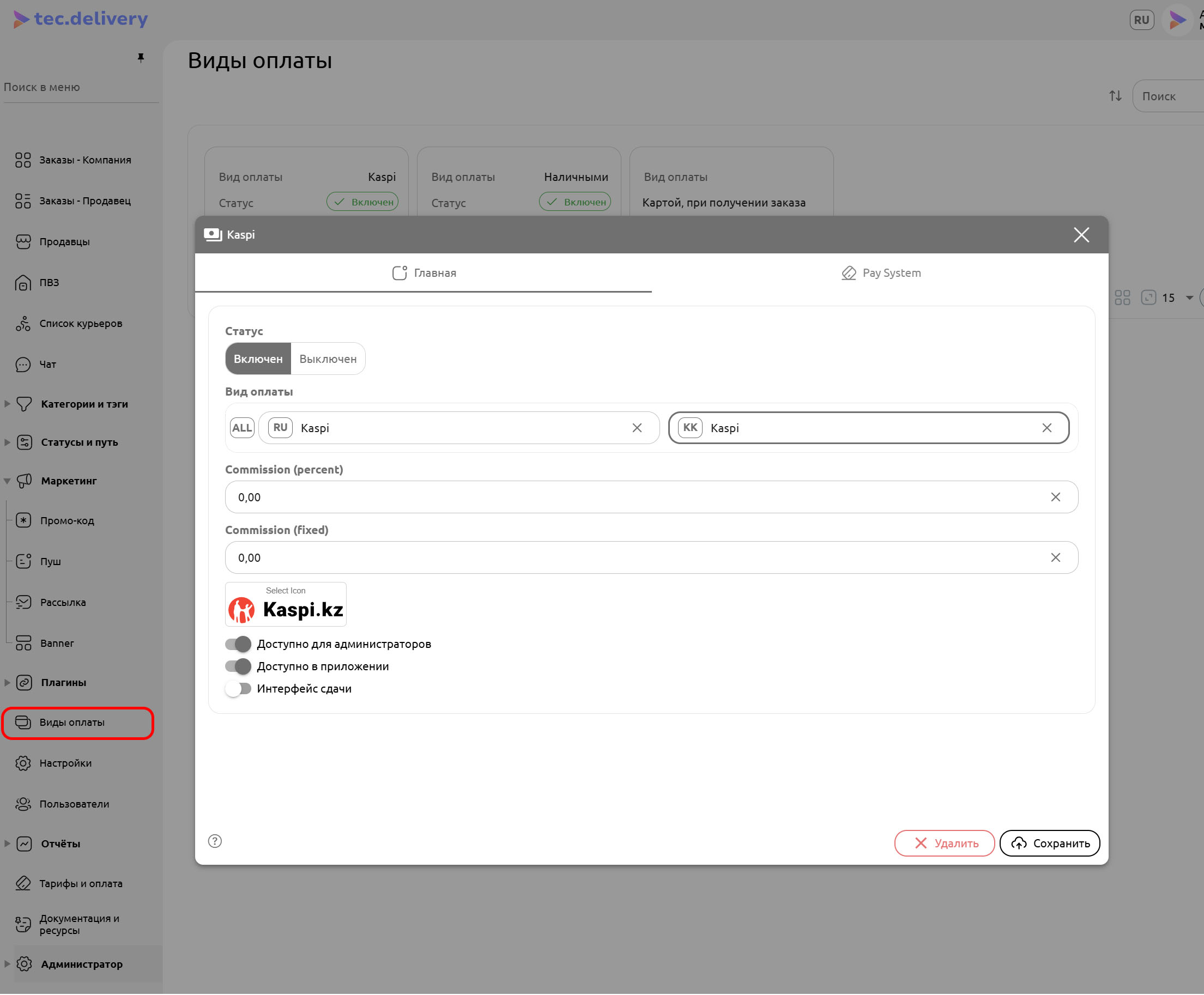
Fill in the main payment method settings.
| Parameter | Description | Example |
|---|---|---|
| Status | Enables or disables the payment method | Enabled |
| Payment Method Name | Name displayed to customers in the application | Kaspi |
| Commission | Fixed amount or percentage added to the order total | |
| Logo | Payment system logo | Kaspi Logo |
Additional Settings
| Parameter | Description | Recommended Value |
|---|---|---|
| Available for Administrators | Allows operators to select this payment method when creating orders | Enabled |
| Available in Application | Displays the payment method to customers | Enabled |
| Change Interface | Cash change calculation interface for cash payments | Disabled |
Configure the Payment Plugin
Open the payment system configuration tab.
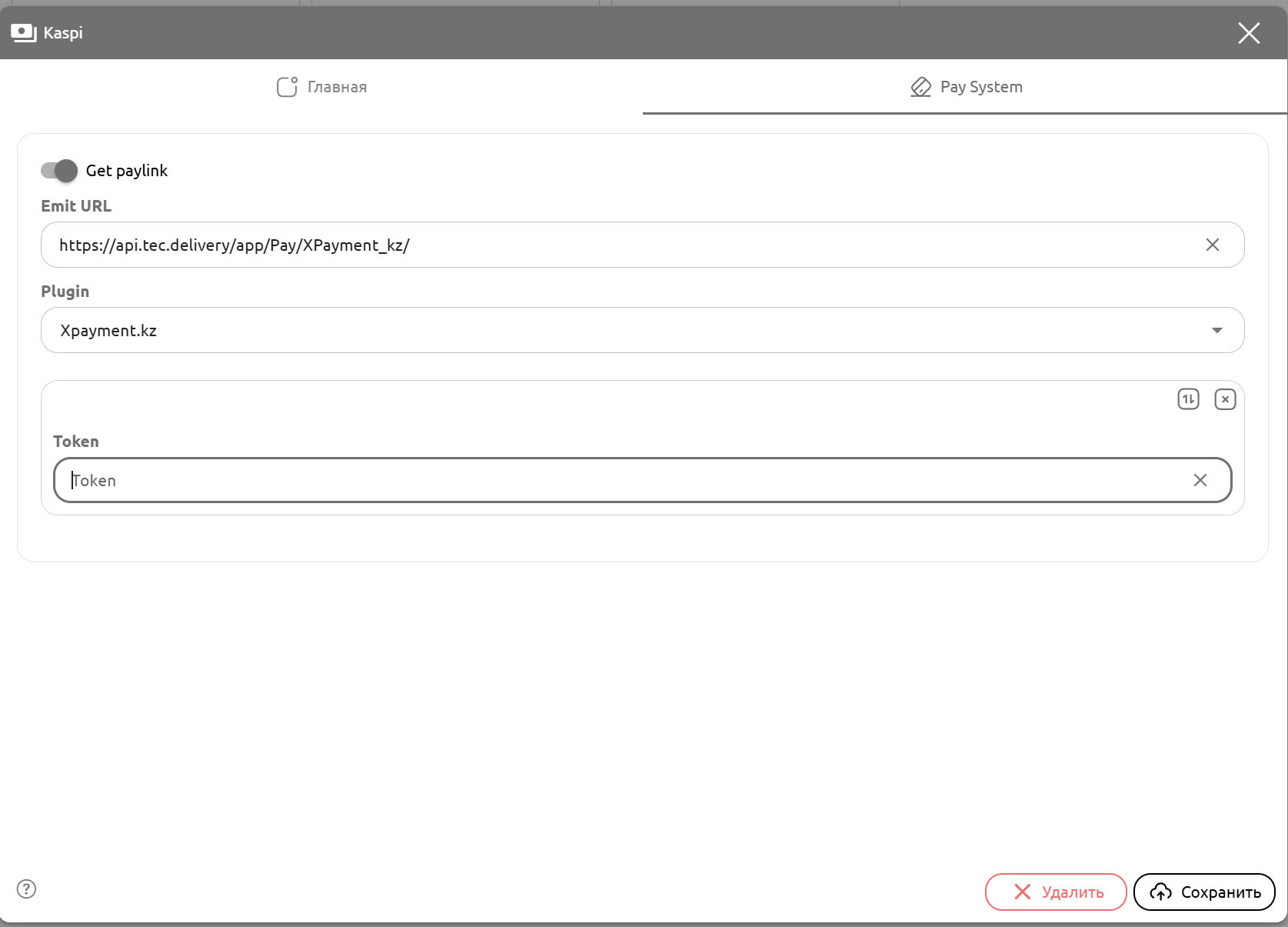
| Parameter | Description | Recommended Value |
|---|---|---|
| Get Paylink | Generates a payment link for the customer | Enabled |
| Emit URL | URL used to process payment notifications and requests | https://api.tec.delivery/app/Pay/XPayment_kz/ |
| Plugin | Selected payment plugin | XPayment.kz |
| Token | API token obtained from your XPayment account | xp_live_xxxxxxxxxxxx |
XPayment
Complete Setup Guide: From Kaspi Connection to Your First Payment
This guide explains how to register with XPayment, obtain an API token, connect Kaspi and other payment methods, and configure webhooks for payment processing. It is recommended to complete this guide before configuring the plugin.
Verify Payment Processing
After saving the settings, create a test order and complete a payment.
| Verification | Expected Result | Example |
|---|---|---|
| Payment Method Visibility | The payment method is available during checkout | XPayment Online is displayed in the application |
| Payment Link Generation | The XPayment payment page opens | Redirect to payment form |
| Successful Payment | The order status is updated automatically | The order receives the "Paid" status |
Checklist
- XPayment API token has been obtained.
- A new payment method has been created.
- All required parameters have been completed.
- The XPayment.kz plugin has been selected.
- A valid API token has been entered.
- The settings have been saved successfully.
- A test payment has been completed successfully.
- The payment method is visible in the application.