
WhatsApp Notifications Setup Guide for Tec.Delivery Clients via Twilio
Official WhatsApp Business API integration using Twilio
This guide explains how to connect WhatsApp notifications in Tec.Delivery using Twilio and the official WhatsApp Business Platform.
Required Data for Tec.Delivery
Before configuring WhatsApp notifications in Tec.Delivery, prepare the following Twilio data:
- Account SID
- Auth Token
- WhatsApp Sender Number
- Template IDs / ContentSid
HX28c6fb3250aadd68f200dd056bd2ee56
Meta / Facebook Business Setup
Step 1. Create a Meta Business Account
Go to business.facebook.com.
Create or log in to your Meta Business account.
Step 2. Add Company Information
In Meta Business Manager, complete the company profile:
- Legal company name
- Business address
- Company website
- Business email
- Business phone number
- Country
- Industry
Step 3. Prepare Business Verification Documents
Meta may request documents to verify your business:
- Company registration certificate
- Business license
- Tax registration document
- Utility bill or bank statement showing the company address
- Website or domain proof
Step 4. Start Business Verification
Start the verification process and follow Meta’s instructions.
Step 5. Enable Two-Factor Authentication
Enable two-factor authentication for business administrators.
Twilio Account Setup
Step 1. Create a Twilio Account
Go to twilio.com.
Create a new Twilio account or log in to an existing account.
Step 2. Upgrade the Twilio Account
Add billing information and payment method for production usage.
Step 3. Find Account SID and Auth Token
Open the main Twilio Console Dashboard and copy:
- Account SID
- Auth Token
WhatsApp Sender Registration in Twilio
Step 1. Open WhatsApp Senders
Step 2. Start WhatsApp Self Sign-up
Start the WhatsApp onboarding process and connect your Meta Business account.
Step 3. Select or Create a WhatsApp Business Account
During onboarding, select or create:
- Meta Business Portfolio
- WhatsApp Business Account, also called WABA
- WhatsApp Business Profile
Step 4. Add WhatsApp Business Profile Information
- Display name
- Business category
- Description
- Website
- Business email
- Logo, if required
Step 5. Register a Dedicated Phone Number
The phone number must:
- Be able to receive SMS or voice call during verification
- Not be actively used in regular WhatsApp or WhatsApp Business mobile app
- Be dedicated to WhatsApp Business API usage
Step 6. Wait for Approval
After approval, copy the WhatsApp Sender Number from Twilio.
+14155238886
Creating WhatsApp Templates in Twilio
Step 1. Open Content Template Builder
Step 2. Create a Template for Order Status Notifications
Your order #{{1}} status has changed. New status: {{2}} Thank you for your order.
Step 3. Add Template Variables
Use numbered placeholders: {{1}}, {{2}}, {{3}}.
Step 4. Submit the Template for WhatsApp Approval
The template must comply with WhatsApp and Twilio rules.
Step 5. Copy Template ContentSid
HX28c6fb3250aadd68f200dd056bd2ee56
Tec.Delivery Configuration
Step 1. Add Twilio / WhatsApp Account
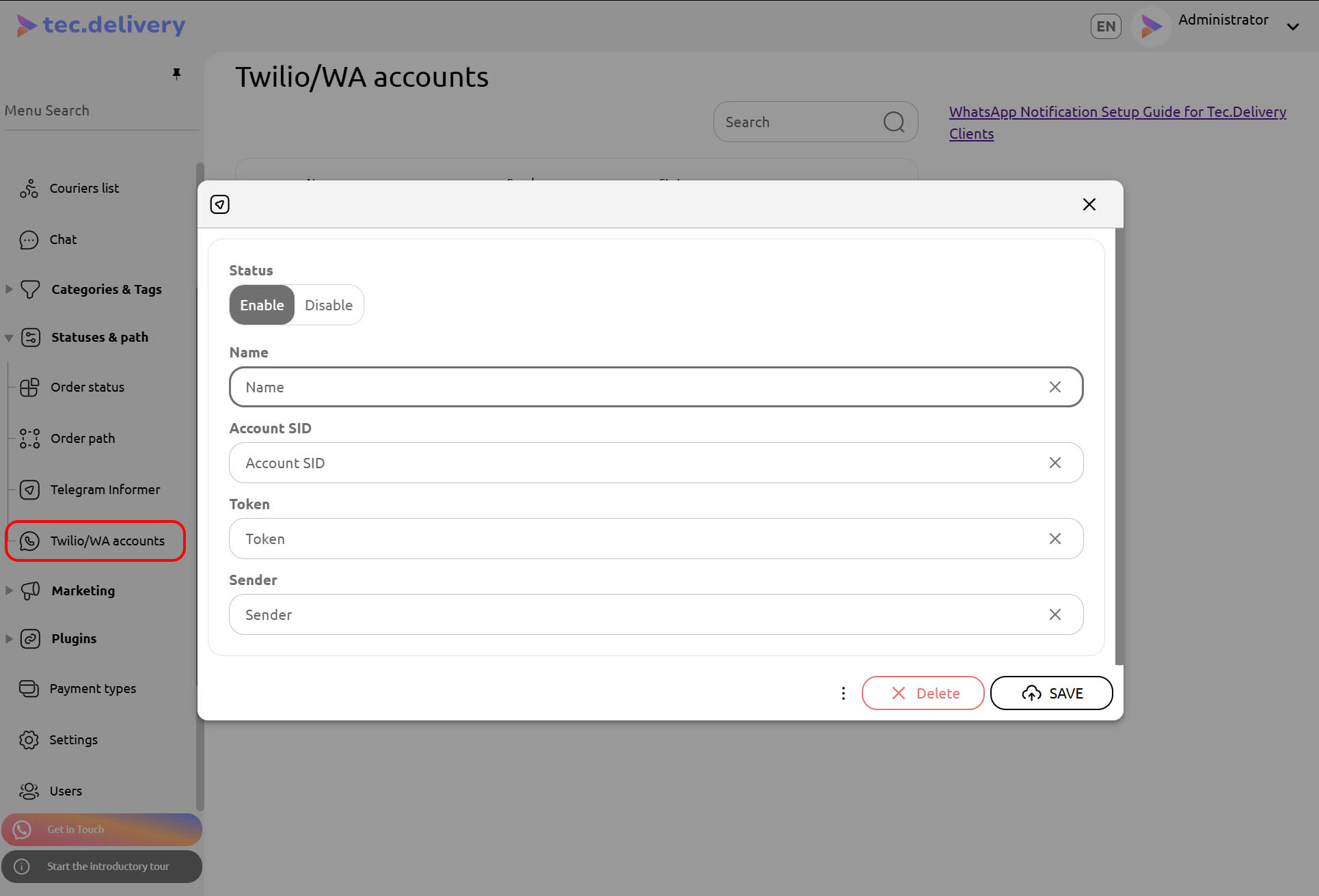 Statuses & Path → Twilio/WA Account → + Add
| Field | Value |
|---|---|
| Name | Any internal account name |
| Account SID | Twilio Account SID |
| Token | Twilio Auth Token |
| Sender | WhatsApp Sender Number, for example +14155238886 |
Click Save.
Step 2. Configure WhatsApp Notification for Order Status
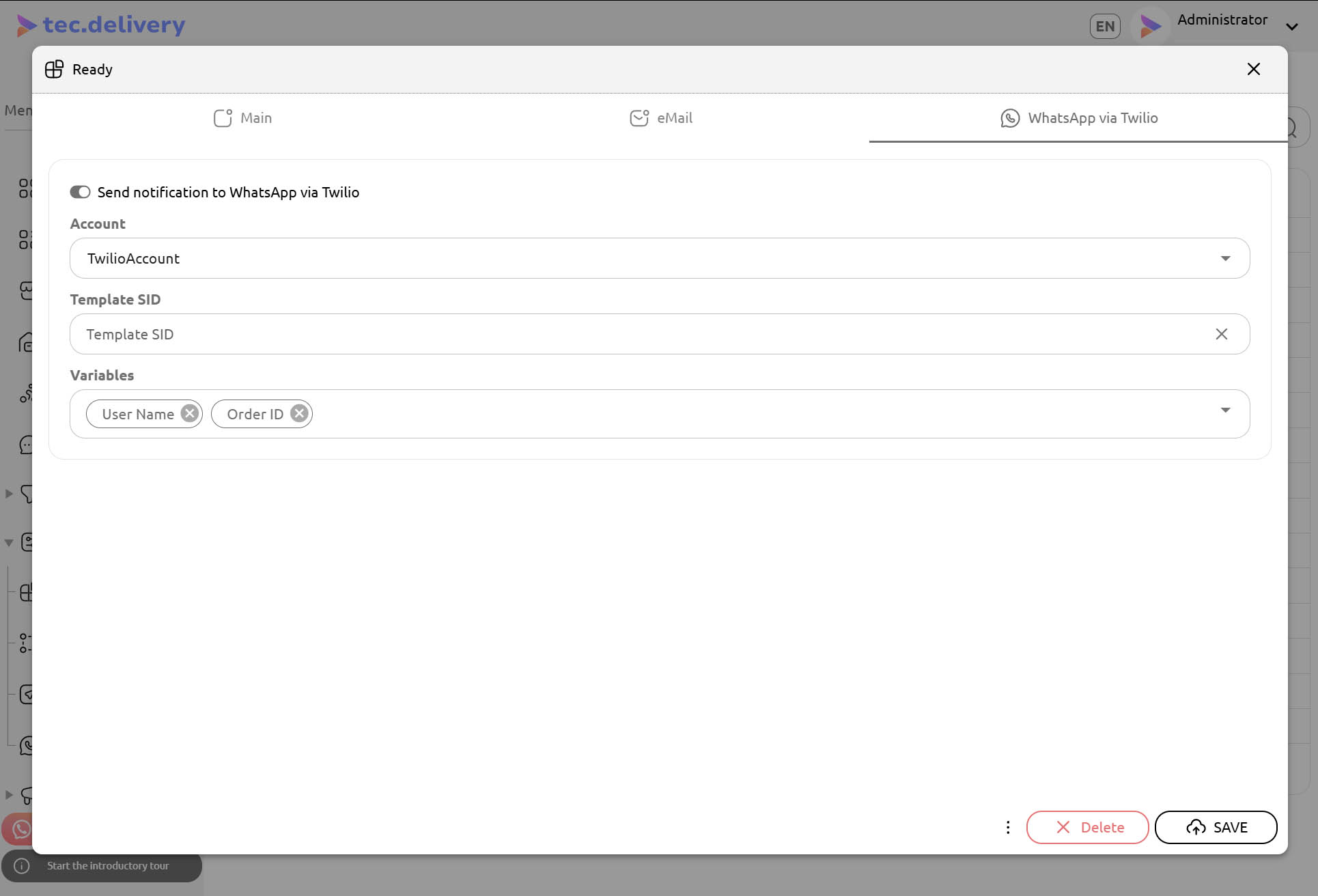 Statuses & Path → Order Status → [Status] → WhatsApp via Twilio
Enable:
Send notification to WhatsApp via Twilio
Step 3. Enter Template SID
Enter the approved Twilio ContentSid.
Step 4. Configure Variables
| Variable | Description |
|---|---|
user_name |
Customer name |
user_phone |
Customer phone number |
order_id |
Order number |
order_security_code |
Order verification code |
order_status |
Current order status |
order_left_time |
Remaining estimated delivery time in minutes |
Twilio template: Your order #{{1}} status has changed. New status: {{2}} Tec.Delivery variables: 1 → order_id 2 → order_status
Click Save.
Testing
- Create a test order.
- Use a customer phone number that can receive WhatsApp messages.
- Change the order status in Tec.Delivery.
- Verify that the WhatsApp notification is received.
- Check Twilio logs if the message is not delivered.
Important Notes
- WhatsApp Business API is a paid service.
- All WhatsApp charges are billed by Twilio.
- Templates must be approved before use.
- Customers should give consent to receive WhatsApp notifications.
- The sender number must be correctly registered and approved.
- Tec.Delivery only provides technical integration with Twilio.
Final Checklist
- Created Meta Business account
- Completed company information in Meta
- Created Twilio account
- Upgraded Twilio account for production
- Registered WhatsApp Sender in Twilio
- Verified WhatsApp phone number
- Created WhatsApp templates in Twilio
- Received approved ContentSid values
- Copied Account SID
- Copied Auth Token
- Copied WhatsApp Sender Number
- Configured Twilio/WA account in Tec.Delivery
- Configured WhatsApp notification for required order statuses
- Tested notification delivery