
Email Notifications Configuration for Order Status Changes
Configure SMTP connectivity and automatic customer email notifications.
This guide explains how to connect an SMTP server, configure email templates, and enable automatic notifications when an order changes status.
SMTP Requirements
Before configuring email notifications, prepare the SMTP credentials provided by your email service provider.
| Parameter | Description | Example |
|---|---|---|
| SMTP Host | Mail server hostname | smtp.gmail.com |
| SMTP Port | SMTP connection port | 587 |
| Encryption | Connection security protocol | TLS |
| Username | SMTP account username | notifications@example.com |
| Password | SMTP account password | ******** |
smtp.gmail.com, port 587, TLS encryption, notifications@example.com
Configure SMTP Connection
Enter all SMTP credentials provided by your email service.
After entering the settings, click the connection verification button.
| Result | Description |
|---|---|
| Connected | SMTP authentication completed successfully. |
| Error | Authentication failed. Review the displayed log and correct the credentials. |
Click "Check Connection". After receiving "Connected", click "Save".

Enable Email Notifications for Statuses
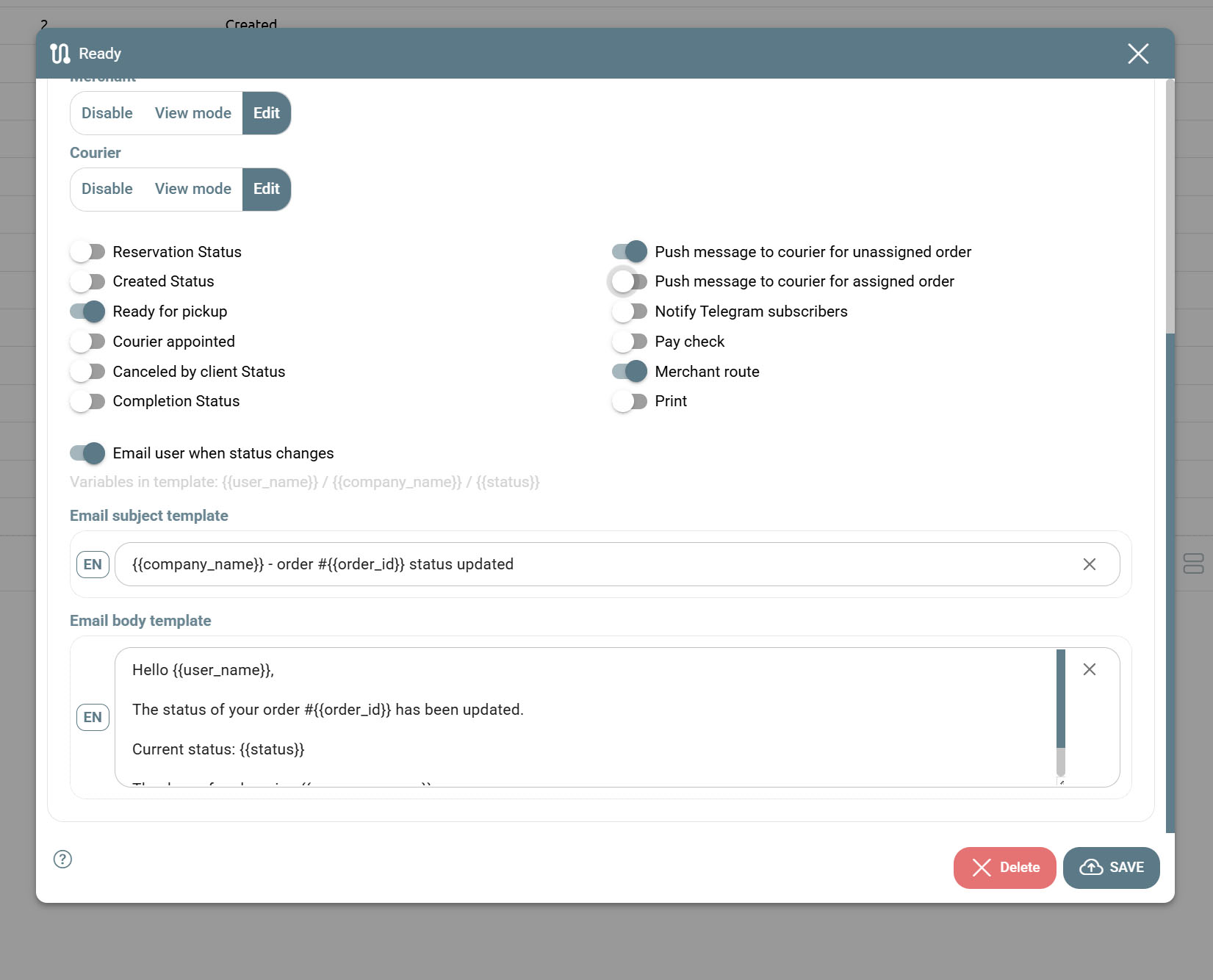
Open the order status that should trigger an email notification and enable customer email notifications.
| Setting | Description | Example |
|---|---|---|
| Email user when status changes | Enables automatic notification delivery when an order reaches this status. | Enabled |
| Email subject template | Email subject line template. | {{company_name}} - Order #{{order_id}} |
| Email body template | Email message content. | Custom notification text. |
Verify Notification Delivery
Create a test order and move it to a status where email notifications are enabled.
| Test Step | Expected Result |
|---|---|
| Change order status | Notification is generated. |
| Check customer mailbox | Email is received successfully. |
| Review email content | Variables are replaced with actual order data. |
Available Template Variables
| Variable | Description | Example Value |
|---|---|---|
| {{user_name}} | Customer name | John Smith |
| {{company_name}} | Company name | Tec Delivery |
| {{status}} | Current order status | Delivered |
| {{order_id}} | Order number | 12548 |
{{company_name}} - New Order #{{order_id}}
Hello {{user_name}},
Thank you for your order.
Your order #{{order_id}} is currently in status {{status}}.
Final Checklist
- SMTP credentials entered correctly.
- SMTP connection successfully verified.
- SMTP settings saved.
- Email notifications enabled for required statuses.
- Email subject and body templates configured.
- Test notification successfully received.